13 posts tagged with "PowerShell"

View All Tags

Run PowerShell App Deployment Toolkit in Datto RMM

· 2 min read

The PowerShell App Deployment Toolkit provides a set of functions to perform common application deployment tasks and to interact with the user during deployment. It simplifies the complex scripting challenges of deploying applications in the enterprise, provides a consistent deployment experience and improves installation success rates.

PowerShell App Deployment Toolkit

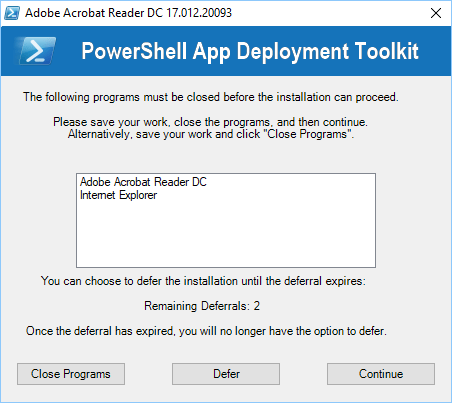
Although the PowerShell App Deployment Toolkit, makes application installation a lot more visible and gives your users more control over how and when the Application is installed, due to some technical limitations, you can't run the PowerShell App Deployment Toolkit, directly from the Datto RMM package store.

This is a brief article, intended to help other people who may be using the App Deployment Toolkit with Datto RMM.

DattoRMMpowerShellAppDeploymentToolkitCommand.ps1

#This is the name of the zip file in the component. Make sure that the PowerShell App Deployment Toolkit is zipped.
$ZipFile = "DesktopSOE.zip"
#This will create a folder called: C:\Temp (these folders can be changed to suit your requirements)
Mkdir c:\Temp -Force
#This will create a folder called: C:\Temp\DesktopSOE\ (these folders can be changed to suit your requirements)
Mkdir C:\Temp\DesktopSOE\ -Force
#This will then copy your PowerShellAppDeployment Toolkit to a folder, outside of the CentraStage Packagestore location.
Copy-Item -Path "$ZipFile" -Destination "C:\Temp\$ZipFile" -Recurse
$DestinationFolder = $ZipFile.Split(".")[0]
#This will then extract your PowerShell App Deployment Toolkit and run it.
Expand-Archive -Path "c:\temp\$ZipFile" -DestinationPath "C:\Temp\DesktopSOE\" -Force
Invoke-Command { c:\temp\DesktopSOE\Deploy-Application.exe }

Note: You may also need to navigate to: AppDeployToolkitConfig.xml, and change the: <Toolkit_RequireAdmin> attribute to False, to avoid issues with UAC (User Access Control).

I also ran my component as:

  • Only Run when the user is logged in
  • Only run if User has Administrator rights

Keep up to date with Azure changes using PowerShell

· 3 min read

Keeping up with what is happening with changes and previews in Microsoft Azure is difficult, change happens all the time - and being able to stay informed on what is happening with the Azure ecosystem is half the battle, whether it is a new feature or security fix.

Microsoft publishes the latest updates on Azure Products and features to their Azure Updates blog: https://azure.microsoft.com/en-us/updates/

So you can browse the website each week, or... monitor the RSS feeds. Sometimes this isn't enough, you may want to do something with this information such as:

  • Create Alerts or Notifications to specific teams who may work with Azure SQL, or Azure Automation and not care about any other product.
  • Not have to go to the website to keep up-to-date with what is happening, maybe your happy with it popping up in your PowerShell session each time you open it.
  • Publish the information to Microsoft Teams channels to keep people informed.

I have created a basic PowerShell function, that will retrieve the latest updates from the Microsoft Azure Updates RSS Feed and turn it into a PowerShell object you can actually use to keep informed.

The Script - Get-AzureBlogUpdates

The script is hosted on my Github repository. Feel free to clone/recommend improvements or fork, I can add parameter sets instead of relying on the PowerShell methods listed in the examples section - if you find this script useful:

Get-AzureBlogUpdates.ps1

function Get-AzureBlogUpdates {
<#
.SYNOPSIS
Retrieves the latest Updates of Azure, from the Azure Blog RSS feed.
.DESCRIPTION
Retrieves the latest Updates of Azure, from the Azure Blog RSS feed.
.NOTES
Version: 1.0
Author: Luke Murray (Luke.Geek.NZ)
Website: https://luke.geek.nz/keep-up-to-date-with-latest-changes-on-azure-using-powershell
Creation Date: 03.04.21
Purpose/Change:
03.04.21 - Intital script development
.EXAMPLE
Get-AzureBlogUpdate

#>
#Retrieving RSS Feed Content - as XML, then converting into PSObject
$xml = [xml](Invoke-WebRequest -Uri 'https://azurecomcdn.azureedge.net/en-us/updates/feed/').content
$Array = @()
foreach ($y in $xml.rss.channel.selectnodes('//item'))
{
$PSObject = New-Object -TypeName PSObject
$Date = [datetime]$y.pubdate
$PSObject | Add-Member NoteProperty 'Title' $y.title
$PSObject | Add-Member NoteProperty 'Date' $Date
$PSObject | Add-Member NoteProperty 'Category' $y.category
$PSObject | Add-Member NoteProperty 'Description' $y.content.InnerText
$PSObject | Add-Member NoteProperty 'Link' $y.link


$Array += $PSObject
}
#Some article had multiple categories, to make it easier for reporting, joined the categories together and got rid of duplicates.

$results = @()
ForEach ($item in $Array) {
$Category = Foreach ($title in $item.Title)
{
$results += [pscustomobject]@{
'Title' = $item.Title
'Category' = $item.Category -join ',' | Select-Object -Unique
'Published Date' = $item.Date
'Description' = $item.Description
'Link' = $item.Link
}
}
}
$results
}

Examples

#Runs the actual Function:
Get-AzureBlogUpdates

Get-AzureBlogUpdates

#EXAMPLE - Gets Azure Blog Updates, that have been published in the last 7 days.
$PublishedIntheLastDays = (Get-Date).AddDays(-7)
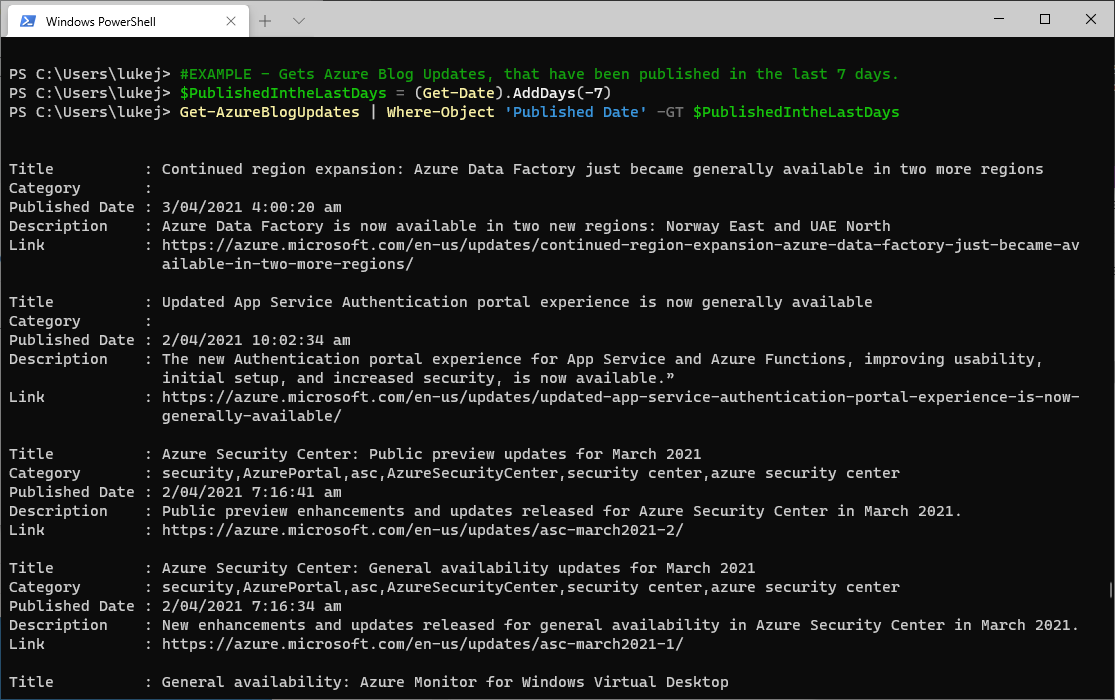
Get-AzureBlogUpdates | Where-Object 'Published Date' -GT $PublishedIntheLastDays

Get-AzureBlogUpdates

#EXAMPLE - Gets all Azure Blog Updates, and displays it as a Table, organised by Category
Get-AzureBlogUpdates | Sort-Object Category -Descending | Format-Table

Get-AzureBlogUpdates

#EXAMPLE -Gets the latest 10 Azure Blog Articles
Get-AzureBlogUpdates | Select -Last 10

Get-AzureBlogUpdates - Select Last 10 Articles

#EXAMPLE - Gets the Azure Blog Update articles, where the title has Automation in it.
Get-AzureBlogUpdates | Where-Object Title -match 'Automation'

Get-AzureBlogUpdates - Title matches Automation

Installing RSAT Tools with PowerShell

· 2 min read

Installing the RSAT (Remote Server Administration Tools for Windows 10) tools using PowerShell. This is just a quick article, written purely as an easy reference.

In the age of the cloud and work from anywhere, Windows 10 allows you easily, install the Remote Server Administration Tools using PowerShell, sometimes (like me) you need these tools not to actually use them - but for the PowerShell modules that come with them to work on scripts locally.

Note: This needs to be run from an elevated PowerShell console (ie ran as Administrator). You can check this using the following:

$currentPrincipal = New-Object Security.Principal.WindowsPrincipal([Security.Principal.WindowsIdentity]::GetCurrent())
$currentPrincipal.IsInRole([Security.Principal.WindowsBuiltInRole]::Administrator)

If it returns:

  • False - You are not in an elevated PowerShell window and will have to relaunch as Administrator
  • True - You are all set to go and can continue...

To get a list of all the Remote Server Administration tools you can install run the following:

Get-WindowsCapability -Name RSAT.* -Online

The versions as of the time this article was written are:

  • Rsat.ActiveDirectory.DS-LDS.Tools~~~~0.0.1.0
  • Rsat.BitLocker.Recovery.Tools~~~~0.0.1.0
  • Rsat.CertificateServices.Tools~~~~0.0.1.0
  • Rsat.DHCP.Tools~~~~0.0.1.0
  • Rsat.Dns.Tools~~~~0.0.1.0
  • Rsat.FailoverCluster.Management.Tools~~~~0.0.1.0
  • Rsat.FileServices.Tools~~~~0.0.1.0
  • Rsat.GroupPolicy.Management.Tools~~~~0.0.1.0
  • Rsat.IPAM.Client.Tools~~~~0.0.1.0
  • Rsat.LLDP.Tools~~~~0.0.1.0
  • Rsat.NetworkController.Tools~~~~0.0.1.0
  • Rsat.NetworkLoadBalancing.Tools~~~~0.0.1.0
  • Rsat.RemoteAccess.Management.Tools~~~~0.0.1.0
  • Rsat.RemoteDesktop.Services.Tools~~~~0.0.1.0
  • Rsat.ServerManager.Tools~~~~0.0.1.0
  • Rsat.Shielded.VM.Tools~~~~0.0.1.0
  • Rsat.StorageMigrationService.Management.Tools~~~~0.0.1.0
  • Rsat.StorageReplica.Tools~~~~0.0.1.0
  • Rsat.SystemInsights.Management.Tools~~~~0.0.1.0
  • Rsat.VolumeActivation.Tools~~~~0.0.1.0
  • Rsat.WSUS.Tools~~~~0.0.1.0

To install ALL the RSAT Tools run the following:

Get-WindowsCapability -Name RSAT.* -Online | Add-WindowsCapability -Online

To only install ONLY the Active Directory Users & Computers Remote Administration tool run the following command:

Get-WindowsCapability -Name RSAT.ActiveDirectory* -Online | Add-WindowsCapability -Online

To only install ONLY the Group Policy Management Remote Administration tool run the following command:

Get-WindowsCapability -Name RSAT.GroupPolicy* -Online | Add-WindowsCapability -Online

First look at Universal Automation Desktop

· 8 min read

There are many ways to do automation scheduling – whether its Jenkins or even Windows Task Scheduler. Each toolset has its place or specialization today we are looking at the son of Ironman Software’s PowerShell Universal Automation platform – the Desktop Edition!

The Desktop edition replicates some of the same functionality as the Universal Automation platform, however, aimed more at being able to drive automation scheduling from your Desktop! Entirely for someone like me who likes to do a certain amount of automation from the Desktop but has a particular distaste for scheduled tasks – like the Universal Automation platform this is entirely driven for PowerShell!

“Desktop edition comes packaged as an Electron app that provides all the great automation features of UA without role-based access, remote access or authentication.”

You can use Universal Automation Desktop for free as a trial:

  • 25 Jobs per day

  • Up to 2 concurrent jobs

We are going to be using the Trial here – however, per-user pricing can be found at the following link: Universal Automation

The toolset is quite intuitive a lot of below isn’t worth going into how do use it - as it seems to be easy to pick up but its always pleasant to have it documented and referable! In my example below, we are going to create a Resource Group in Azure.

  • TOC {:toc}

Install Universal Automation Desktop:

Unlike Universal Automation & Universal Dashboard, installation of the Universal Automation Desktop is packaged into an executable.

  1. Download the latest Universal Automation Desktop installer (bottom of the download pages – at time of writing the installer is 120MB and version 1.0.0)
  2. Installation of Universal Automation Desktop is pretty straight forward, just run the downloaded installer: UniversalAutomationInstall
  3. Once complete, Universal Automation Desktop will load.

Use & Configure Universal Automation Desktop:

Add Scripts

Universal Automation supports git, so a Repository folder is created automatically – any scripts that you add will automatically be added to it:

%LOCALAPPDATA%\UniversalAutomation\Repository

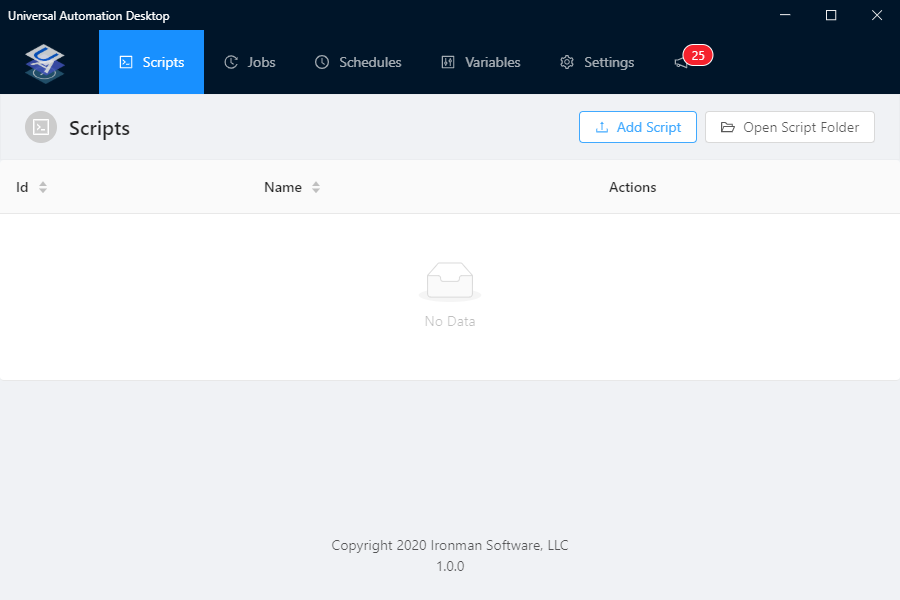
  1. On the Scripts pane select Add Scripts UniversalAutomationScriptsPane
  2. Select the script you want to upload – in my example; I am using ‘New-AzureResourceGroup.ps1’ the script I created for quickly testing some of the functionality.

Gist of script found below, but its also in my GitHub Repository under Azure (GitHub link on the site menu).

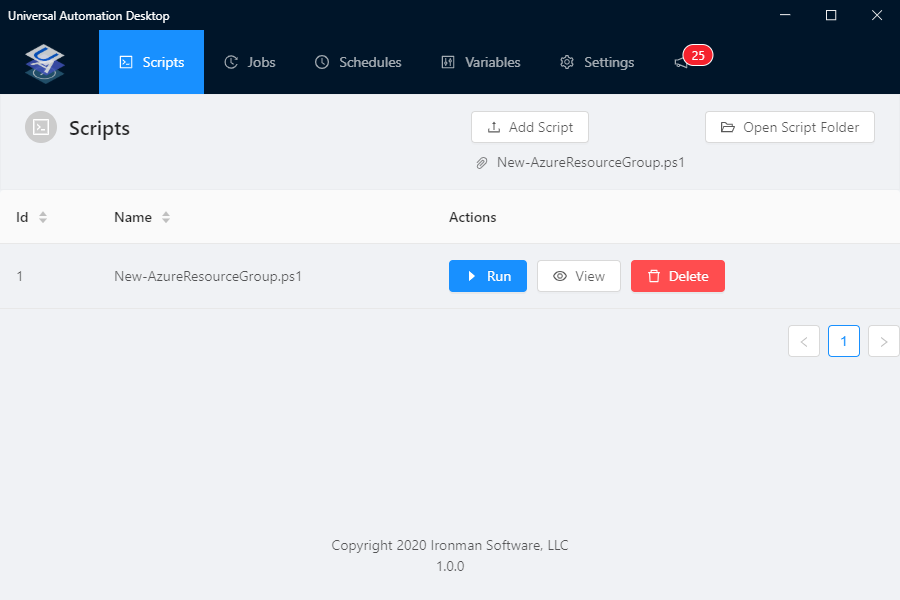
  1. Once added you should see the script appear and you should be able to see it in the Repository folder now: UniversalAutomationScriptsPanePopulated
Add variables

Universal Automation Desktop supports variables.

  1. Click on the Variables menu item
  2. Select Add Variable
  3. In my example, I am adding the location that the Resource Group will be created, so it is going to be the following Key = Value pair: Location = Australia East
  4. Click Ok to save

Note: Location is a variable in my script, I also tested manually setting the name of the Resource Group as well with the Name value as well and worked well.
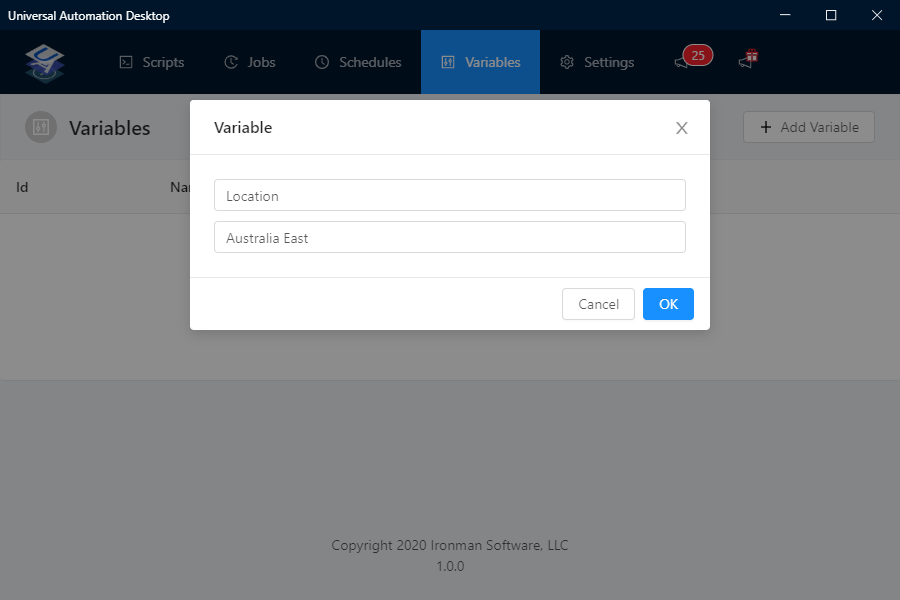
UniversalAutomationVariablesPopulated

Note: The Variables are not encrypted! They are in plain text under:

Repository\.ua\variables.ps1

I did have a few issues with the UI freezing on me, so also discovered that I can manually add variables to this file and after a restart, it seemed to be picked up by Universal Automation as well.

UniversalAutomationVariablesVSCode

Change PowerShell version

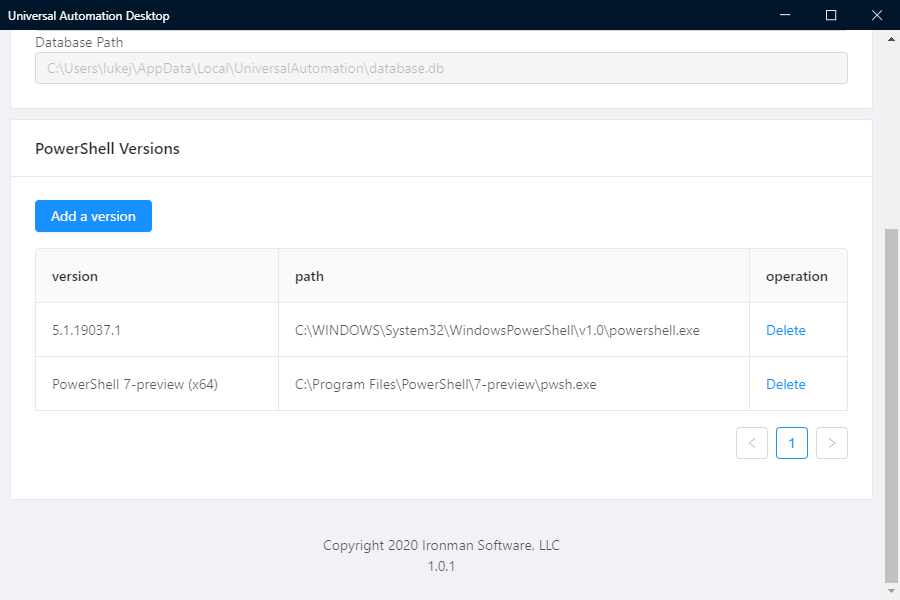
This is an interesting feature, that allows you to specify what Version of PowerShell you can have the scripts run under (in this example I will be adding PowerShell 7 preview). We do not need this for my example.

Note: If you do not see the below, you may need to update – Automation Desktop will update automatically and should notify you – close and restart Automation Desktop to continue (if you get an error message – navigate to your notification tray by the time and Quit any open Universal Automation Desktop applications you have open and then relaunch).

  1. Click Settings
  2. Navigate down to PowerShell versions
  3. Click Add New Version
  4. A new Table row will appear (Version\Path)
  5. In Version we are going to type in: PowerShell 7-preview (x64)
  6. In path type in: C:\Program Files\PowerShell\7-preview\pwsh.exe
  7. Press Enter UniversalAutomationPowerShellVersions

Now when you run your scripts, you can now specify what Version of PowerShell to use!

Run the script

Now that the variables have been set up and the script has been added, we can then Run it.

  1. On the scripts pane select ‘New-AzureResourceGroup.ps1’ and select Run Universal_Automation_ScriptsRun
  2. Specify the PowerShell version – I believe automating this selection is currently in the backlog: - and click Run Universal_Automation_ScriptsRunVersion
  3. The script will now go to the Jobs screen: Universal_Automation_ScriptsRunJob
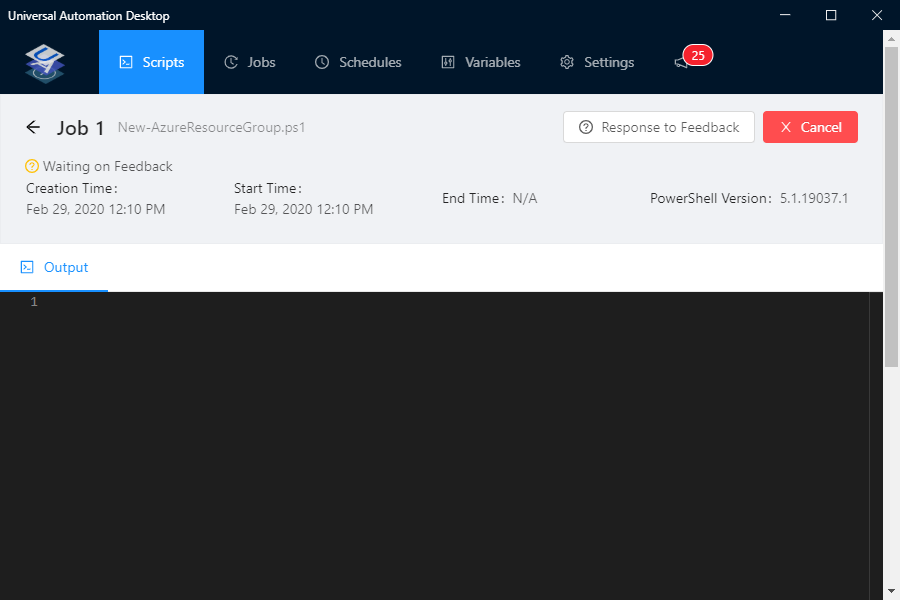
  4. Usually, the script would just run – but in my case, I have a parameter in my PowerShell script to request the name of the Resource Group we are going to create, click on Response to Feedback icon
  5. Type in the name of the Resource Group we are going to create – in my example I am going with: UAutomationRGTest and click Ok Universal_Automation_VariablesFeedback
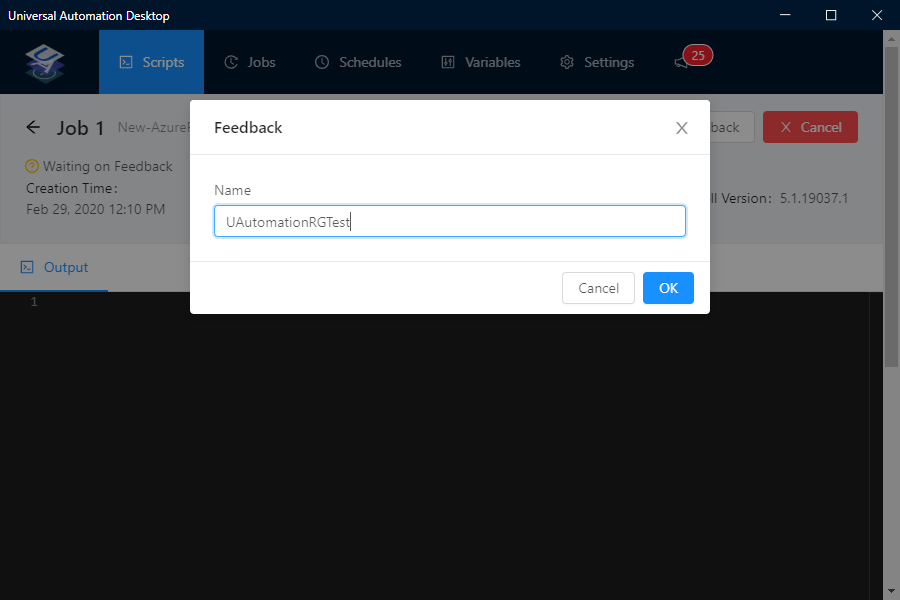
  6. It will now run the script: Universal_Automation_Script Runs
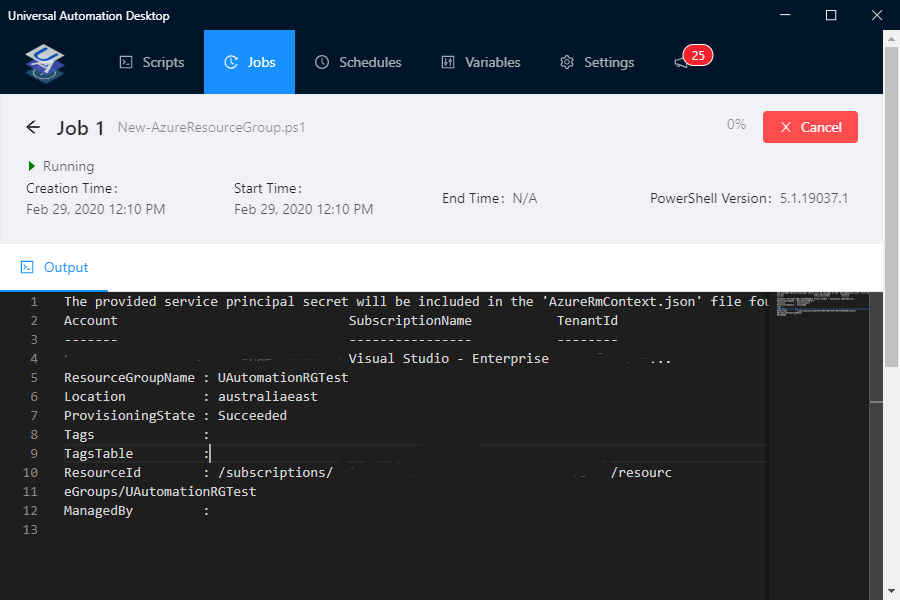
  7. My new Resource Group has been created in Azure, using the name specified in the Parameter (UAutomationRGTest) and the Location (Australia East) that was set in the Variables!

Universal_Automation_Azure Resource Group created

Scheduling scripts

Although at this stage, I am not scheduling any of my scripts to run – it is a core function of the toolset.

  1. Click on Scripts
  2. Select the script you want to schedule and select View
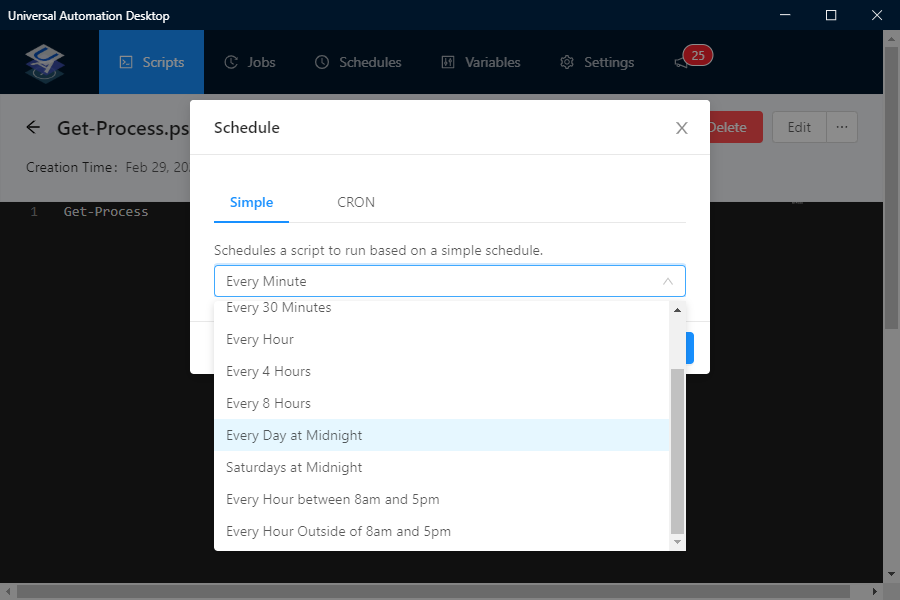
  3. On the right-hand side blade next to Edit, click on the ellipsis (i.e.…) Universal_Automation_Schedule
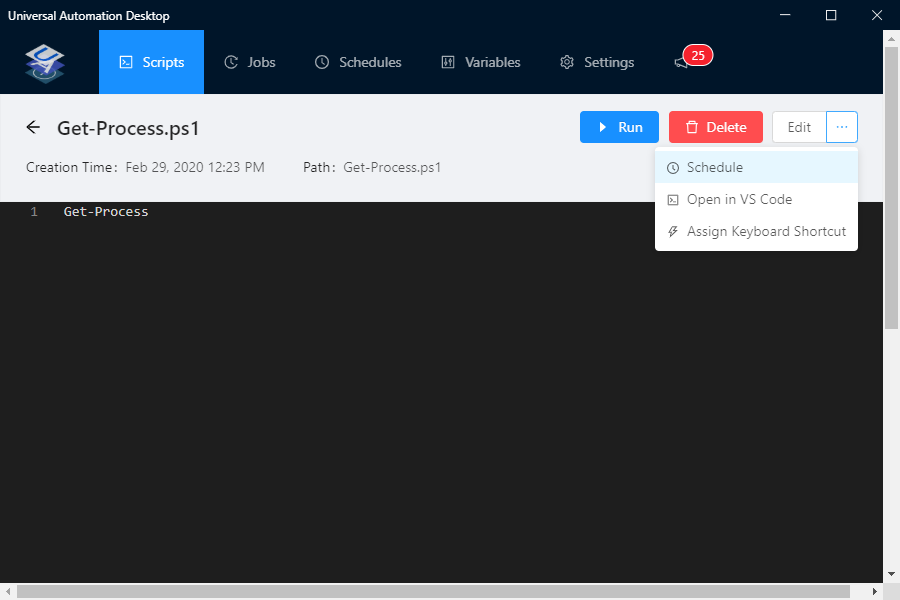
  4. Select Schedule Universal_Automation_Schedule
  5. Specify the schedule you want and click Ok

You should now see the Schedule under Schedules and view the Job history under Jobs.

Overall opinion

Long story short - Universal Automation has a place and is a toolset I will be looking at more closely and using!

I see myself using it to utilize PowerShell and automation a bit more in completion of general day to day activities (both personal and professional) and service requests - without having to worry about moving to the next step with a bigger toolset.

If I use a script often enough – then there will be a definite need to move to another team based toolset with RBAC tools such as the Universal Automation offering by Adam Driscoll of Ironman Software.

Word of warning – and it should go without saying :

DO NOT RUN UNIVERSAL AUTOMATION DESKTOP ON YOUR DOMAIN COMPUTER FOR PRODUCTION OR SHARED SCRIPTS! PLEASE LOOK AT UNIVERSAL AUTOMATION FOR THAT! YOU DON’T WANT TO GO HOME OR SHUTOFF YOUR PC OR LEAVE FOR BETTER AND BRIGHTER THINGS AND GET CALLED UP BECAUSE SOME VERY IMPORTANT PROCESS DIDN’T RUN!

My Test Script - New-AzureResourceGroup

I created this function to quickly test 2 things:

  • How does Universal Automation work with 3rd party modules?

  • How does Universal Automation work with parameters and variables?

Universal Automation Desktop does not touch your scripts, in fact depending on what your use case is your git repository should be inline with Automation Desktop and you can sync the Variables across multiple installs.

My script is using 2 modules:

  • CredentialManager

  • Azure (AZ)

I thought CredentialManager would be a good test here as Universal Automation is intended to be run from your Desktop (in my case Windows 10) and using Credential Manager to store my Azure SPN details – without revealing it in plan text was a good test. More information can be found below:

ToastIT - Safe Credentials

New-AzureResourceGroup.ps1

#requires -Version 2.0 -Modules Az.Accounts, Az.Resources, CredentialManager


function New-AzureResourceGroup
{
<#
.SYNOPSIS
Creates Azure Resource Group
.DESCRIPTION
Creates Azure Resource Group function, created as a test function for Universal Automation Desktop
.EXAMPLE
New-AzureResourceGroup
#>
param
([Parameter(Mandatory = $true, HelpMessage = 'Enter the name of the Resource Group you want to create', Position = 0)]
[ValidateNotNullorEmpty()]
[string] $Name,
[Parameter(Position = 1)]
[string]
$Location = 'Australia East'

)

$tenantId = (Get-StoredCredential -Target 'MSDN SPN Demo').GetNetworkCredential().UserName
$pscredential = (Get-StoredCredential -Target 'MSDN SPN Demo Key')

Connect-AzAccount -ServicePrincipal -Credential $pscredential -Tenant $tenantId

New-AzResourceGroup -Name $Name -Location $Location -Force
}

New-AzureResourceGroup

Luke - GitHub

Update your Azure Local Network Gateway IP with PowerShell

· 3 min read

One of the issues you face with setting up an Azure Site to Site VPN is making sure that your Azure Local Network Gateway always has your Public/On-premises IP.

This setup is fine when used in environments that have Static IPs (and yes if setting this up for a Business or Production, it is highly recommended to have a static IP!).

However, when used in environments like my home network or lab environments - which has a Dynamic IP that could change at any time it will cause connectivity issues if your IP changes and the Local Network Gateway is not updated.

The script below – intended to be run on as a Daily scheduled task, will find your Public IP and connect to Azure and if needed – will update the IP of your Local Network Gateway.

Prerequisites:

Once you have the Azure Service Principal and Az Module installed, you need to edit the following variables to suit your environment:

  • $ResourceGroup = 'RESOURCE GROUP OF LOCAL NETWORK GATEWAY'
  • $LocalNetworkGateway = ‘NAME OF AZURE LOCAL NETWORK GATEWAY’
  • $azureAplicationId =’AZURE AD APPLICATION ID’
  • $azureTenantId= ‘AZURE AD TENANCY/DIRECTORY ID’
  • $azureAPI = ‘AZURE AD APPLICATION API/CLIENT SECRET’
Update-LocalNetGatewayIP.ps1

#requires -Version 3.0 -Modules Az.Network
<#
.SYNOPSIS
Custom script to update your Azure Local Network Gateway with your Public IP
.DESCRIPTION
Updates the Azure Local Network Gateway with your Public IP
Version: 1.0
Author: Luke Murray (Luke.Geek.NZ)
If no Public IP parameter is set, it will automatically grab the Public IP of the computer running it and set it.
The intention of this script is to run as as a scheduled task on your network, which connects to Azure and updates. Intended for Homelabs and scenarios which have Dynamic IPs.

#>
#---------------------------------------------------------[Initialisations]--------------------------------------------------------

$ErrorActionPreference = 'Stop'

[Object]$PublicIP = (Invoke-WebRequest -Uri 'http://ifconfig.me/ip').Content
[string]$ResourceGroup = 'z_Network'
[string]$LocalNetworkGateway = 'Prod-SiteToSite-VLAN-LNGateway'

# Use the application ID as the username, and the secret as password
$azureAplicationId ="Azure AD Application Id"
$azureTenantId= "Your Tenant Id"
$azureAPI = "Your API Key"
$azurePassword = ConvertTo-SecureString "$azureAPI" -AsPlainText -Force
$psCred = New-Object System.Management.Automation.PSCredential($azureAplicationId , $azurePassword)
Connect-AzAccount -Credential $psCred -TenantId $azureTenantId -ServicePrincipal

<#

Before adding the Azure Service Principal in and testing as a Scheduled Task, it is recommended that you just test the script first by connecting manually using:

Connect-AzAccount

#>

#-----------------------------------------------------------[Execution]------------------------------------------------------------


$a = Get-AzLocalNetworkGateway -ResourceGroupName $ResourceGroup -Name $LocalNetworkGateway
$GatewayIP = $a.GatewayIpAddress


If ($PublicIP -ne $GatewayIP) {

$a.GatewayIpAddress = $PublicIP
Set-AzLocalNetworkGateway -LocalNetworkGateway $a

}

Else {

$null

}

Note: Script is also hosted on my Github repository. Feel free to clone/recommend improvements or fork.